

How to Publish to Notion With BlogAmplify
Authorize BlogAmplify in Notion, choose a database and map its properties. Each article becomes a full Notion page.
By Kush Agrawal · Updated
What gets published
Each article becomes a page in the database you choose: the header image as the page cover, the body as Notion blocks (headings, paragraphs, lists, quotes, images, YouTube embeds, and tables as real Notion table blocks) and the properties you map, from the meta description and slug to keywords and the publish date. Republishing replaces the same page's content.
Notion pages have no place for structured data, so the FAQ appears as text only. Notion pages also live outside your own domain, so automatic article updates and the per-article checks on Site Health don't cover them. If you run your own site, the custom webhook gets you both.
Before you start
- 1A BlogAmplify plan for this website (the 3-day trial counts). See pricing
- 2A Notion account with permission to add connections to the database
- 3A Notion database for the articles (see step 1 for the properties). Its title property is often called
Name.
Steps
Step 1: Prepare your Notion database
Create or choose a Notion database for the articles. Only the title property is required. Add any of these properties you want filled in (the names are suggestions; you match them up in step 6):
Property Type What BlogAmplify puts in it Name Title The article title (required; every database has one) Meta Description Text The meta description URL Slug Text The URL slug Primary Keyword Text The article's main search Keywords Multi-select The main and secondary keywords Status Select Set to "Published" Published Date Date The first publish time (kept on updates) Word Count Number The article's length Author Text The author's name Featured Image URL URL The header image's address SEO Title Text The search result title Category Select The topic the article belongs to Format Select How-to, comparison, listicle and so on Use a Select property for Status, not Notion's Status type. SEO Title, Category and Format can be mapped on the Integrations page after onboarding.
Step 2: Open the publishing settings in BlogAmplify
Sign in to BlogAmplify. On a new website, publishing is the last onboarding step (step 5, Publishing). On a website that is already set up, open Integrations in the sidebar.
Step 3: Choose Notion
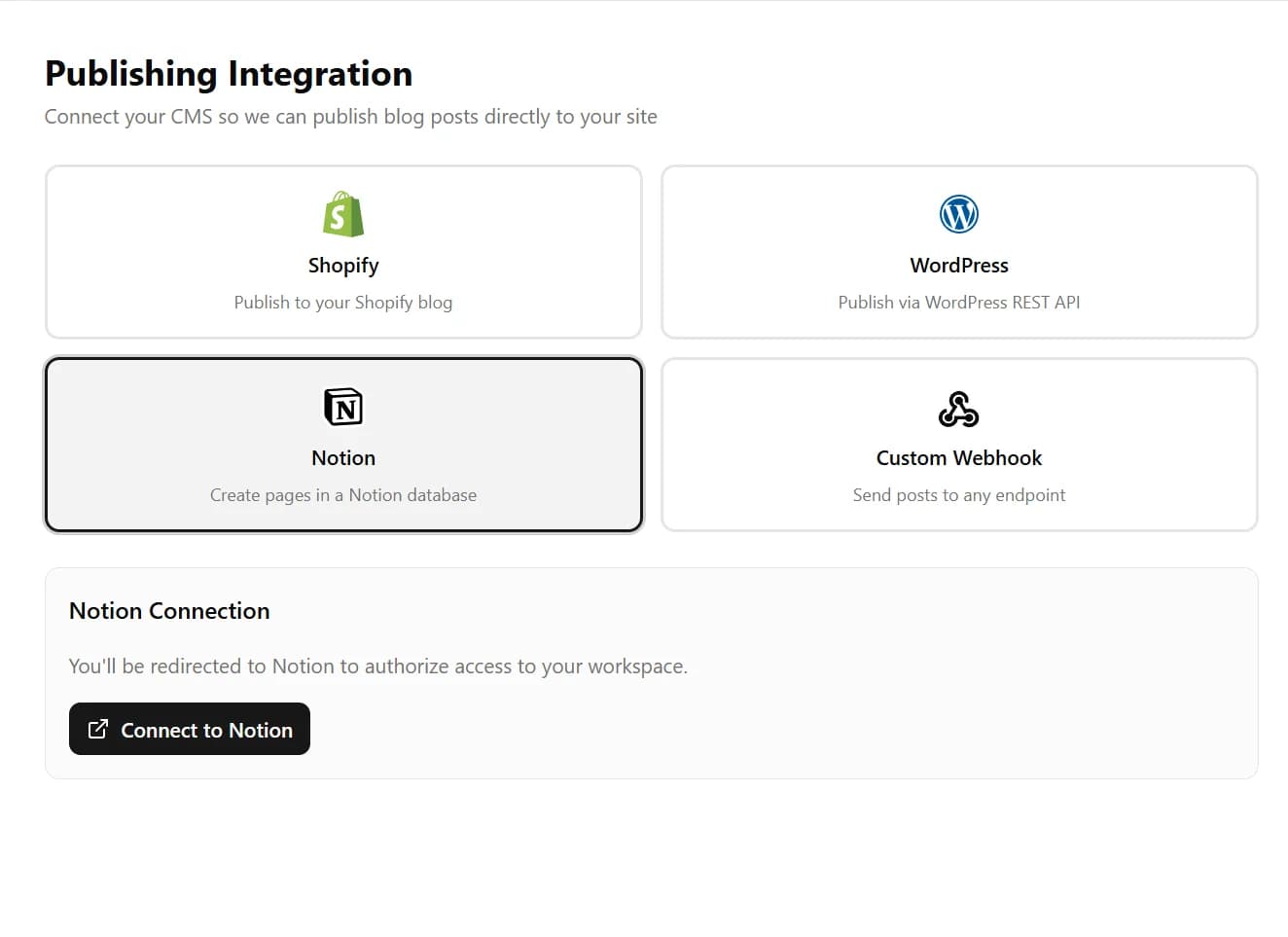
Click the Notion card, then Connect to Notion. Notion opens in the same tab.
Step 4: Allow access to your database in Notion
Notion shows two screens:
- Review permissions: what BlogAmplify can do in the pages you share with it (view, edit and create content). Click Select pages.
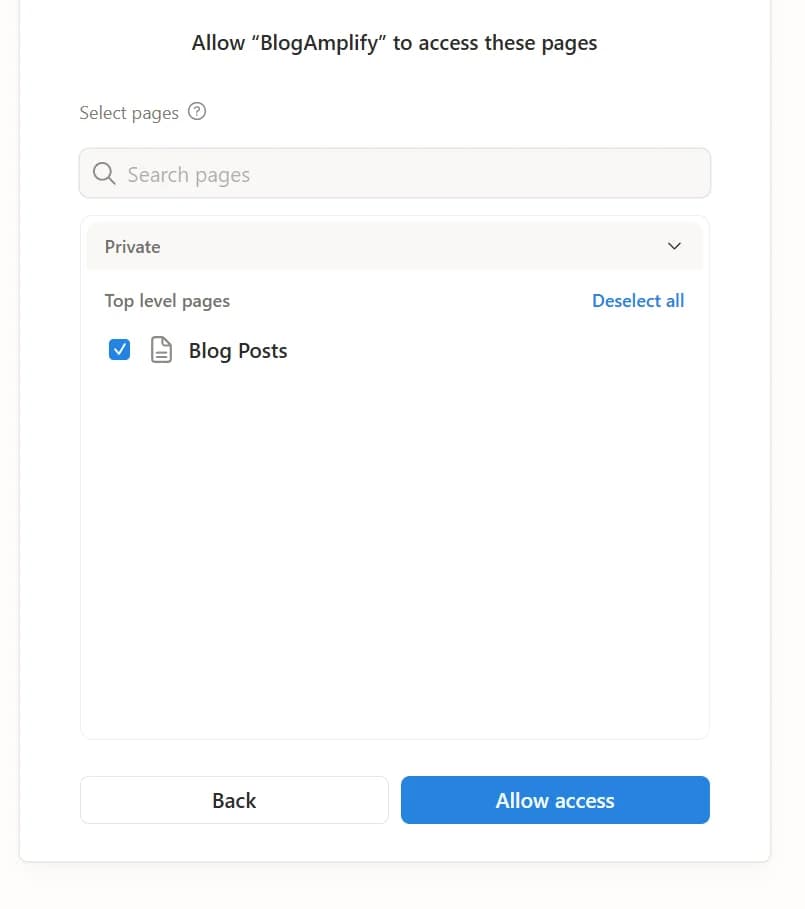
- Select pages: search for your database (for example "Blog Posts"), tick it and click Allow access.
Tick the database itself. BlogAmplify only sees what you share here. If you skip it, the database list in the next step is empty.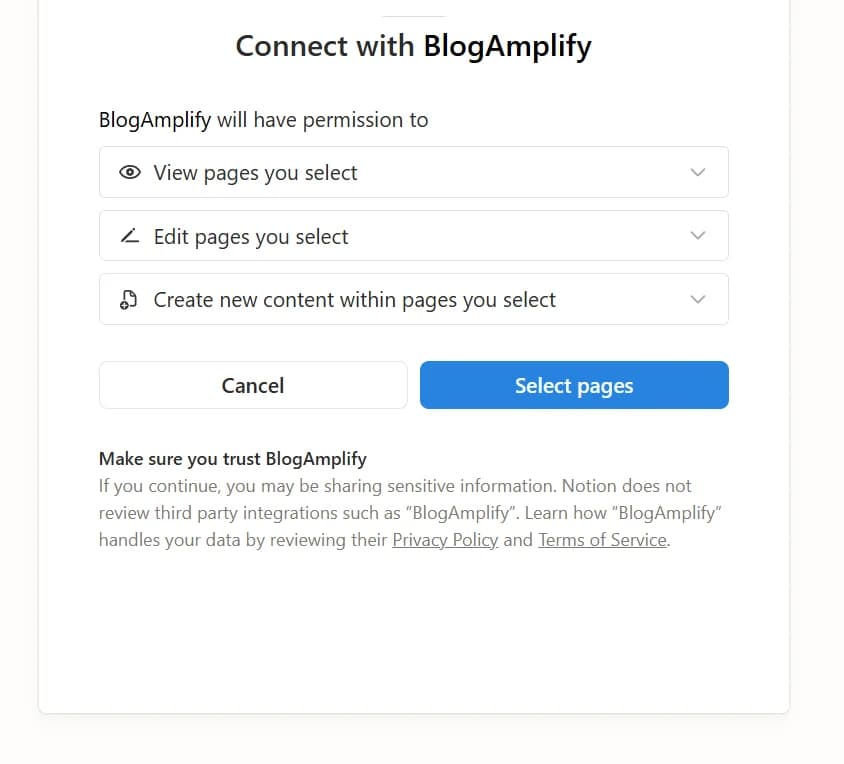
Step 5: Choose the database
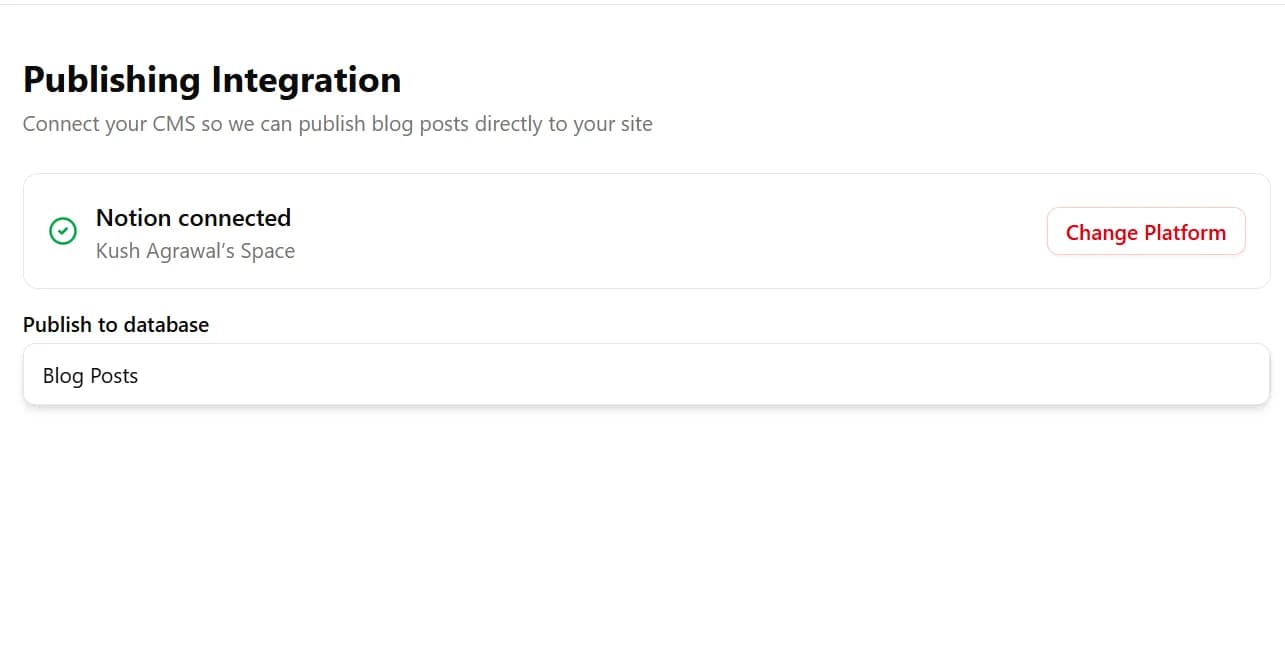
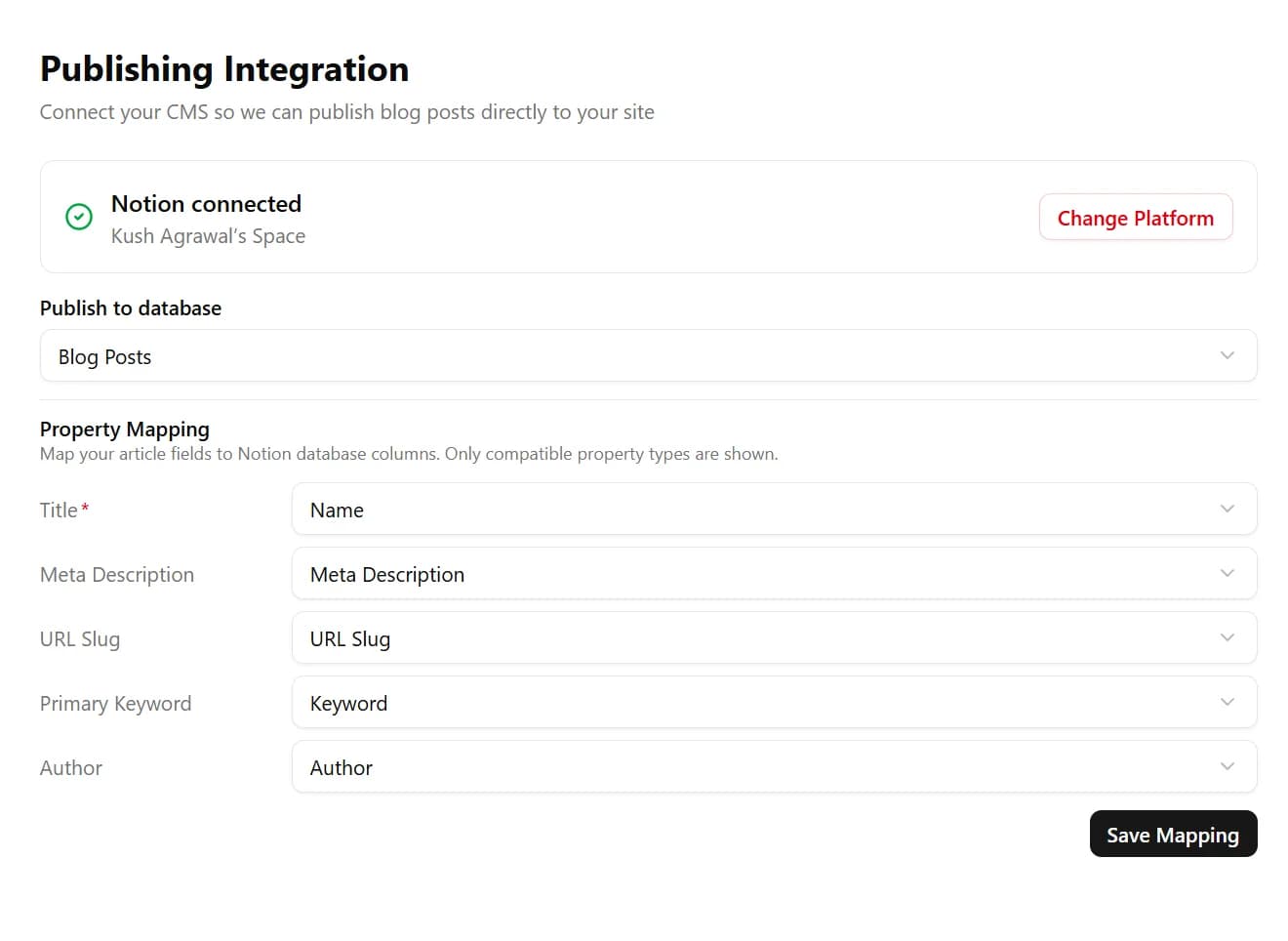
Back in BlogAmplify, you see that Notion is connected and a Publish to database list. Choose the database articles should go to.
Step 6: Map the properties
BlogAmplify reads the database's properties and lists each article field next to a dropdown. Pick the matching property for each field you want filled in. Each dropdown shows only properties of the right type, so a text field can't be mapped to a date.
Click Save Mapping. Fields you leave unmapped are skipped.
Step 7: Finish setup
During onboarding, click Complete Setup. On the Integrations page there is nothing more to click: the connection is live.
Auto-publish is on by default, so each planned article is written and added to your database on its day, at the time set in Article Config. To read articles first, turn off Auto-Publish there: you then start each article yourself and publish it from the editor.
Troubleshooting
"No databases found" after connecting
No database was shared during authorization. Either:
- Open the database in Notion, click the ... menu, then Connections, and add BlogAmplify. Then reload BlogAmplify.
- Or click Change Platform in BlogAmplify, connect Notion again and tick the database on Notion's page picker.
A field shows "No compatible property available"
The database has no property of the type that field needs (see the table in step 1). Add one in Notion, for example a Text property called "Keyword", then choose the database again in BlogAmplify to reload its properties.
A page is missing the end of the article
Notion accepts 100 blocks per request, so long articles are sent in parts. If a later part fails, the page is created but incomplete. Republish the article from the editor: that replaces the same page's content instead of creating a second page.
The cover image doesn't show
The cover is set from the header image's web address. Check that the address opens in a browser. Notion sometimes takes a moment to load external covers.
"Notion error (400)" or "Notion error (403)" when publishing
- 403: BlogAmplify lost access to the database. Add it again under the database's Connections.
- 400: a mapped property was renamed, deleted or changed type. Choose the database again and save the mapping.
- 401: the connection was removed in Notion. Click Change Platform and connect Notion again.
Ready to connect your website?
Start a plan, then connect your blog during setup. It takes a few minutes.
Card required. Free for 3 days, then from $99/mo. Cancel before then and pay nothing.