

How to Connect WordPress to BlogAmplify (Application Password)
Create an Application Password in WordPress and paste it into BlogAmplify. No plugin to install.
By Kush Agrawal · Updated
What gets published
Each article is published as a WordPress post with its featured image (uploaded to your Media Library with alt text), the excerpt, its keywords as tags and its topic as the category, created when it doesn't exist yet. It appears under the WordPress user whose name matches the author in Article Config, else under the account you connect.
The SEO title and meta description are filled in for Rank Math, All in One SEO and SEOPress (plus the focus keyword for Rank Math and SEOPress). Yoast SEO accepts them only when the site exposes its fields to the REST API, for example with the free SEO Fields API Support plugin. When one of these plugins is active, BlogAmplify adds only the FAQ and video markup, because the plugin already outputs the article markup. Republishing updates the same post in place.
Before you start
- 1A BlogAmplify plan for this website (the 3-day trial counts). See pricing
- 2A self-hosted WordPress site, or a WordPress.com plan that allows plugins
- 3WordPress 5.6 or later, served over HTTPS
- 4An Administrator account (an Editor works, with the author limit described in step 1)
Steps
Step 1: Create an Application Password in WordPress
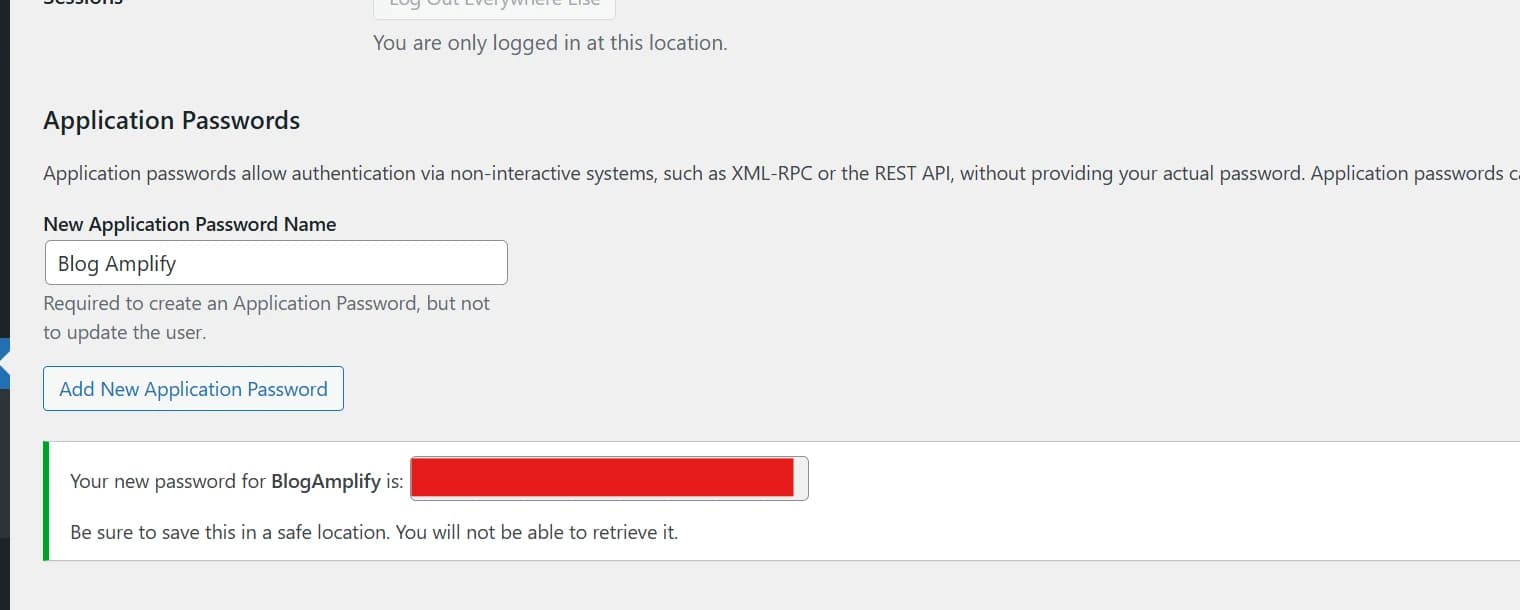
An Application Password lets BlogAmplify publish through the WordPress REST API without your login password, and you can revoke it on its own at any time. To create one:
- Log in to your WordPress admin
- Go to Users, Profile (or click your name in the top right corner)
- Scroll down to Application Passwords
- Enter a name, such as
BlogAmplify, and click Add New Application Password - Copy the password right away. WordPress shows it only once. It looks like
xxxx xxxx xxxx xxxx xxxx xxxx
Create it on an Administrator account if you can. An Editor can publish too, but WordPress doesn't let an Editor look up other users, so every post then appears under that account.
Step 2: Open the publishing settings in BlogAmplify
Sign in to BlogAmplify. On a new website, publishing is the last onboarding step (step 5, Publishing). On a website that is already set up, open Integrations in the sidebar.
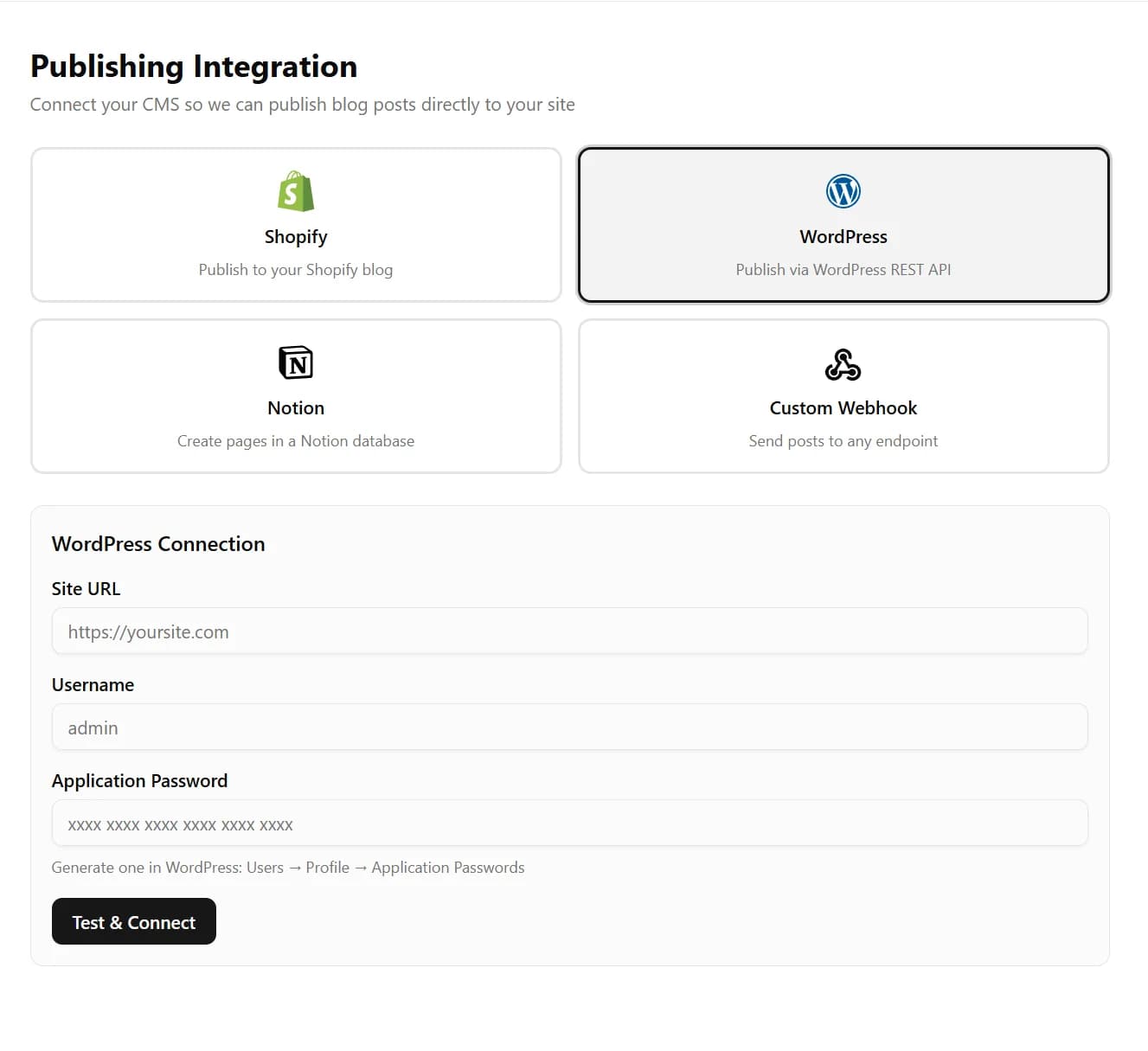
Step 3: Choose WordPress
Click the WordPress card. A form appears with three fields: Site URL, Username and Application Password.
Step 4: Enter your site and credentials
- Site URL: your WordPress address, such as
https://myblog.com. If WordPress lives in a folder, include it (https://mysite.com/blog). - Username: the username of the account that created the Application Password (the one you log in with, not your email address).
- Application Password: the password from step 1, with or without its spaces.
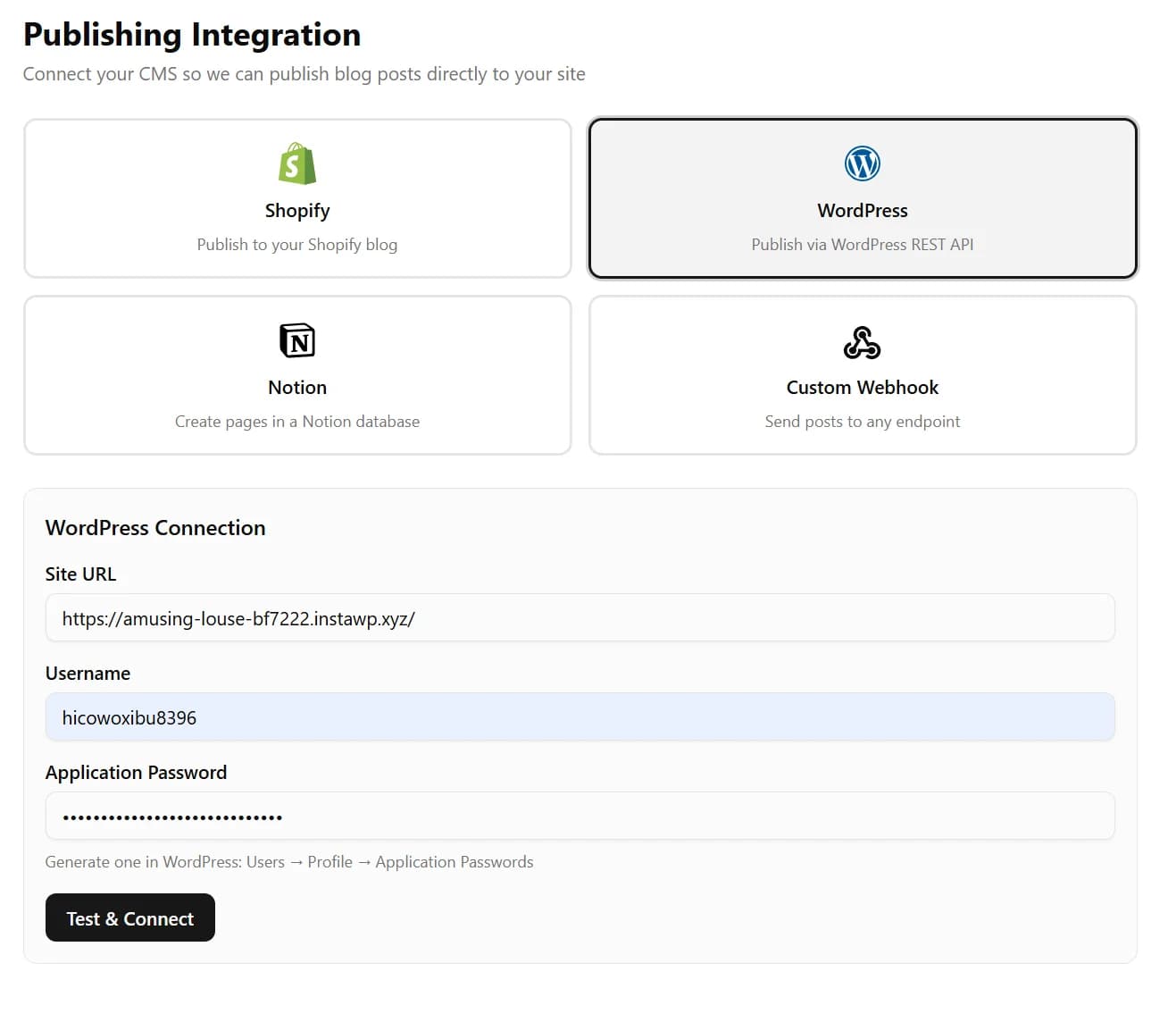
- Site URL: your WordPress address, such as
Step 5: Click Test & Connect
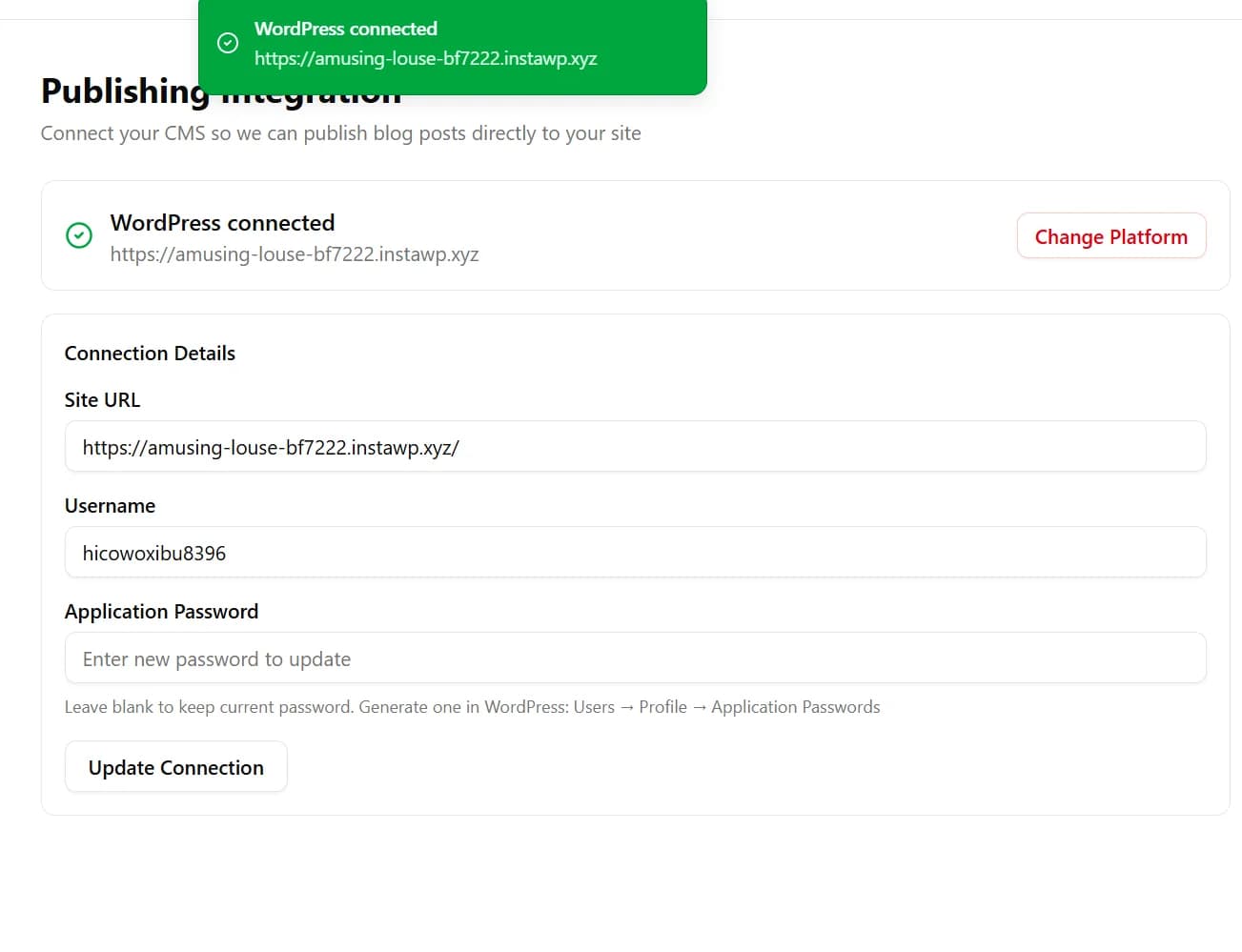
BlogAmplify signs in to your site's REST API at
/wp-json/wp/v2/users/me. When it works, you see a WordPress connected confirmation with the account's display name.The Application Password is encrypted (AES-256-GCM) before it is stored, and it is only sent to your own site.
Step 6: Finish setup
During onboarding, click Complete Setup. On the Integrations page there is nothing more to click: the connection is live.
Auto-publish is on by default, so each planned article is written and published on its day, at the time set in Article Config. To read articles before they go live, turn off Auto-Publish there: you then start each article yourself and publish it from the editor.
Troubleshooting
There is no "Application Passwords" section in WordPress
- Application Passwords need WordPress 5.6 or later (see Dashboard, Updates).
- WordPress turns them off on sites that don't use HTTPS.
- Some security plugins and managed hosts switch them off. Check the plugin's settings or ask your host.
Test & Connect fails with a 401
- Use the WordPress username, not your email address
- Use the Application Password, not your login password
- Make sure the password belongs to the same account as the username
- Create a new Application Password and try again
- Some hosts strip the Authorization header before WordPress sees it. If a fresh password still fails, ask your host to pass it through.
"Could not reach WordPress site"
BlogAmplify can't reach your site's REST API. Check that:
- The Site URL is right and opens in a browser
- The site is public (not behind a VPN, a login wall or an IP allow list)
- The REST API is on:
https://yoursite.com/wp-json/should show JSON in a browser - A firewall or security plugin (Cloudflare, Sucuri, Wordfence) isn't blocking API requests
Posts appear under the wrong author
BlogAmplify posts as the WordPress user whose name or username matches the author in Article Config. Without a match, or when the connected account isn't allowed to list users (Editors aren't), posts appear under the connected account. Create a WordPress user with the author's name, or connect with an Administrator's Application Password.
Posts publish without a featured image
The image is uploaded to your Media Library first. If the upload fails, the post still publishes, without the image. Common causes are an upload size limit (upload_max_filesize in PHP) or a security plugin blocking /wp-json/wp/v2/media. Your server's PHP error log usually says which.
"rest_cannot_create" or posts end up as drafts
The account can't publish posts. Contributors can only write drafts. Change the account's role to Editor or Administrator under Users, All Users.
Frequently asked questions
Do I need to install a WordPress plugin?
No. BlogAmplify uses the REST API built into WordPress. The only optional plugin is SEO Fields API Support, and only if you use Yoast SEO and want BlogAmplify to fill in its title and description.
How do I disconnect BlogAmplify from WordPress?
Click Change Platform on the Integrations page in BlogAmplify, or revoke the Application Password under Users, Profile in WordPress. Revoking it stops all access at once. Published posts stay on your site either way.
Ready to connect your website?
Start a plan, then connect your blog during setup. It takes a few minutes.
Card required. Free for 3 days, then from $99/mo. Cancel before then and pay nothing.