

How to Connect Shopify to BlogAmplify
Connect your store with a custom app from the Shopify Dev Dashboard. It takes about five minutes and needs no app from the Shopify App Store.
By Kush Agrawal · Updated
What gets published
Each article becomes a published post on the Shopify blog you choose, with its header image and alt text, the author name, a short summary, and its topic and keywords as tags (Shopify blogs have no categories, and themes filter by tag). The SEO title and meta description go into Shopify's own search engine listing fields, and the article's FAQ and video markup is added to the body, since Shopify themes already output the article markup.
Republishing updates the same article in place, keeping its address and publish date. Wondering whether a blog is worth it for a store? See BlogAmplify for Shopify stores.
Before you start
- 1A BlogAmplify plan for this website (the 3-day trial counts). See pricing
- 2Admin access to the Shopify store, and access to the Shopify Dev Dashboard
- 3At least one blog in Shopify (Online Store, Blog posts, Manage blogs)
Steps
Step 1: Open the publishing settings in BlogAmplify
Sign in to BlogAmplify. On a new website, publishing is the last onboarding step (step 5, Publishing). On a website that is already set up, open Integrations in the sidebar.
Choose Shopify. The form asks for three things: your store address, a Client ID and a Client Secret. The next steps create the last two.
Step 2: Create an app in the Shopify Dev Dashboard
Open the Shopify Dev Dashboard at
dev.shopify.comand sign in with the Shopify account that owns or manages the store.Click Create an app, name it something you will recognise, such as BlogAmplify, and select the store you want to connect. This is a private app for your own store: there is nothing to install from the Shopify App Store.
Step 3: Configure the Admin API scopes
In the app, open Configure Admin API scopes, then search for and enable these two scopes (the same two the BlogAmplify form lists):
Scope What it covers read_contentRead your blogs and articles write_contentCreate and update articles Click Save. BlogAmplify needs no other scopes: it only reads your blogs and creates and updates articles. Without
read_contentandwrite_content, connecting fails.Step 4: Install the app on your store
Open the app from the Dev Dashboard sidebar, click Install app in the top right corner and choose the store.
The app has to be installed before its credentials work. If you skip this step, connecting fails.
Step 5: Copy the Client ID and Client Secret
In the Dev Dashboard, click Settings in the app's sidebar. Copy the Client ID and the Client Secret.
Keep the Client Secret private. Paste it only into BlogAmplify, never into an email, chat or public document.Step 6: Connect in BlogAmplify
Back in BlogAmplify, fill in the Shopify form:
- Store URL: your store's myshopify.com address, such as
mystore.myshopify.com, even if customers see your own domain. Shopify shows it under Settings, Domains. - Client ID and Client Secret from the previous step.
Click Connect Shopify. BlogAmplify asks your store for an access token with these credentials and checks that it can read your blogs. Shopify's tokens expire after 24 hours, so BlogAmplify requests a fresh one from the same credentials whenever it publishes. You don't need to do anything after connecting.
- Store URL: your store's myshopify.com address, such as
Step 7: Choose the blog and the author name
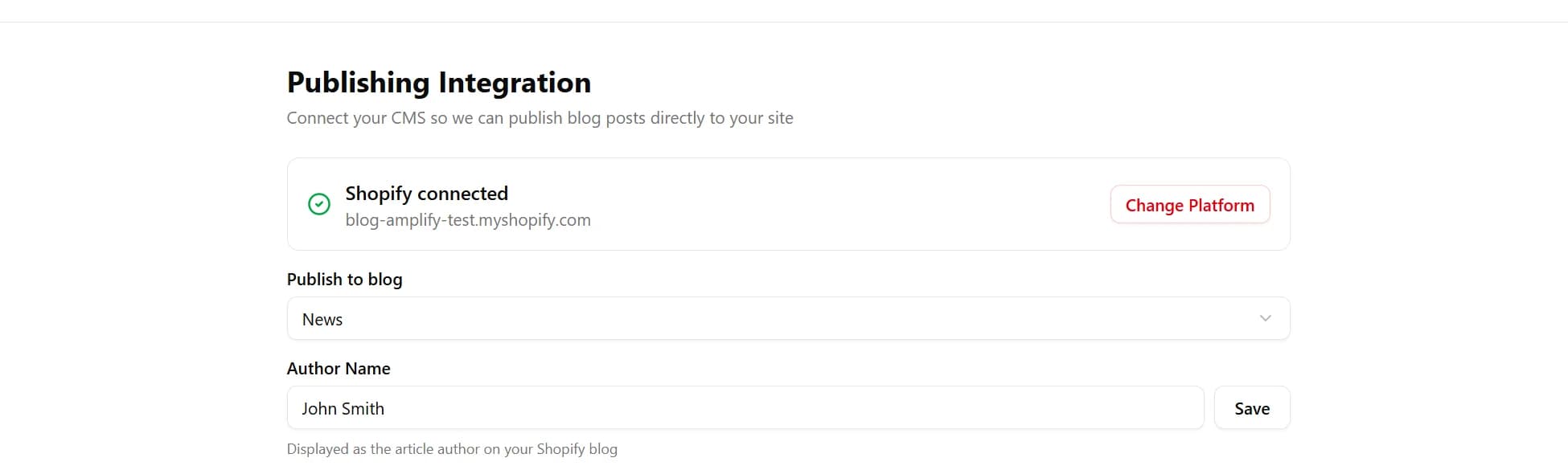
Pick the blog articles should go to under Publish to blog. Optionally enter an Author Name and click Save. When you have set up an author profile in Article Config, its name is used instead; without either, the store's name is used.
No blog in the list? Create one in Shopify first under Online Store, Blog posts, Manage blogs, Add blog, then reload the page.
Step 8: Finish setup
During onboarding, click Complete Setup. On the Integrations page there is nothing more to click: the connection is live.
Auto-publish is on by default, so each planned article is written and published to your blog on its day, at the time set in Article Config. To read articles before they go live, turn off Auto-Publish there: you then start each article yourself and publish it from the editor.
Troubleshooting
"No blogs found" after connecting
Your store needs at least one blog. In Shopify, go to Online Store, Blog posts, Manage blogs and add one (for example "News" or "Blog"). Then reload BlogAmplify.
"Invalid Client ID or Client Secret"
Check that:
- Both values come from the app's Settings page in the Dev Dashboard, copied in full
- The app is installed on the store, not only created
- The Store URL is the myshopify.com address of the store the app is installed on
"Access token is invalid or missing required scopes"
The app is missing read_content or write_content. Add the scopes in the Dev Dashboard, save, install the new version on the store if Shopify asks you to, and connect again.
Articles publish but don't appear on the storefront
- Add the blog to your theme's menu under Online Store, Navigation.
- Check that your theme has a blog template. Some themes need it set up once.
- Open Blog posts in Shopify and check that the article shows as visible.
The header image is missing on an article
Shopify downloads the header image from its web address when the article is created. If an app or firewall on your store blocks that, the article publishes without it. Republish the article from the BlogAmplify editor to try again.
"Shopify auth failed" or "Shopify API error" when publishing
The app was uninstalled, or its credentials changed. To fix it:
- Check in the Dev Dashboard that the app is still installed and that its Client Secret hasn't been rotated
- Open Integrations in BlogAmplify, click Change Platform and connect Shopify again with the current values, then choose the blog again
- Disconnecting turns auto-publish off, so turn it back on in Article Config
Frequently asked questions
Is BlogAmplify in the Shopify App Store?
No. You connect with a custom app you create for your own store in the Shopify Dev Dashboard, which takes about five minutes. The app only works for your store and you can uninstall it at any time.
Will BlogAmplify change my theme or products?
No. It creates and updates blog articles only. Your theme, products, collections and pages are left as they are.
Can I edit an article in Shopify after it is published?
Yes. Automatic article updates read the article as it is live on your store and change only the passage they add or rewrite, so your edits stay. Each change is listed on Site Health with an undo. Republishing from the BlogAmplify editor replaces the body with the editor's version.
Ready to connect your website?
Start a plan, then connect your blog during setup. It takes a few minutes.
Card required. Free for 3 days, then from $99/mo. Cancel before then and pay nothing.